How to Use Claude Code on iPhone: The Best Remote Coding Setup for AI Agents
The complete guide to running AI coding agents from your phone with mosh, tmux, Tailscale, and push notifications
TL;DR: Use Tailscale for networking, mosh+tmux for resilient sessions, and Moshi as your iOS terminal app. Add moshi-hook for agent approvals, inbox rows, Live Activities, Apple Watch actions, and usage tracking.
Want to use Claude Code from your iPhone? Monitor GitHub Copilot agents remotely? Approve Cursor background tasks while away from your desk?
AI coding agents like Claude Code, GitHub Copilot Coding Agent, and Cursor Background Agents can implement features, fix bugs, and create pull requests autonomously. But they still need human judgment for:
- Permission to run destructive commands
- Architectural decisions
- Access to sensitive files
- Disambiguation when requirements are unclear
Your agent is only as productive as your availability. This guide covers the essential stack for staying connected from anywhere.
The Stack
| Layer | Tool | Purpose |
|---|---|---|
| Network | Tailscale / WireGuard | Secure access to your dev machine |
| Connection | mosh | Resilient mobile shell |
| Session | tmux | Persistent sessions + scrollback |
| Terminal | Moshi | Native iOS terminal, inbox, voice, image paste, and push notifications |
| Agent events | moshi-hook | Structured approvals, completions, Live Activities, and usage windows |
Each layer solves a specific problem. Skip one, and the whole setup breaks down.
┌──────────────────┐
│   Dev Server     │  mosh + tmux + AI agent
│   Always On      │  Runs 24/7
└────────┬─────────┘
         │ Push notification
         ▼
┌──────────────────┐
│     iPhone       │  Moshi app
│                  │  Approve & continue
└──────────────────┘
Connect to Your Dev Server from Anywhere (Tailscale / WireGuard)
Before you can SSH from your iPhone to your dev machine, you need a way to reach it. If your server is behind NAT, a firewall, or a corporate network, direct SSH isn't possible.
Why You Need a Mesh VPN
Tailscale builds on WireGuard to create a peer-to-peer mesh network. Every device gets a stable IP address that works from anywhere—home, office, coffee shop, cellular.
From a Hacker News discussion:
"SSH running on top of Wireguard / Tailscale is way more usable than before. Those tools address the roaming IP issues directly at the network layer."
Tailscale Setup
# Install via Homebrew
brew install tailscale

# Enable SSH access
sudo tailscale up --ssh

# Get your Tailscale IP (e.g., 100.64.0.1)
tailscale ip
Now your Mac is accessible from any device on your tailnet—even from cellular networks behind carrier-grade NAT.
Tailscale SSH eliminates key management entirely. Permissions are managed as code in your ACLs.
For Moshi's mosh mode, keep normal SSH available on the host too. Mosh bootstraps by running mosh-server over SSH, and Tailscale's built-in SSH server is not always a drop-in replacement for OpenSSH command execution. See Tailscale and Fix Mosh Connection Failed.
Alternative: Raw WireGuard
If you prefer self-hosting, WireGuard gives you the same benefits with more control. The tradeoff is manual key management.
Why mosh Is Better Than SSH for Mobile (iPhone/iPad)
SSH over unreliable networks is painful. Change WiFi networks, switch to cellular, or let your phone sleep—and your session dies.
Mosh (Mobile Shell) was built for mobile connections.
mosh vs SSH
According to the mosh research paper, on a link with 29% packet loss, mosh reduced average response time from 16.8 seconds to 0.33 seconds—a 50x improvement over SSH.
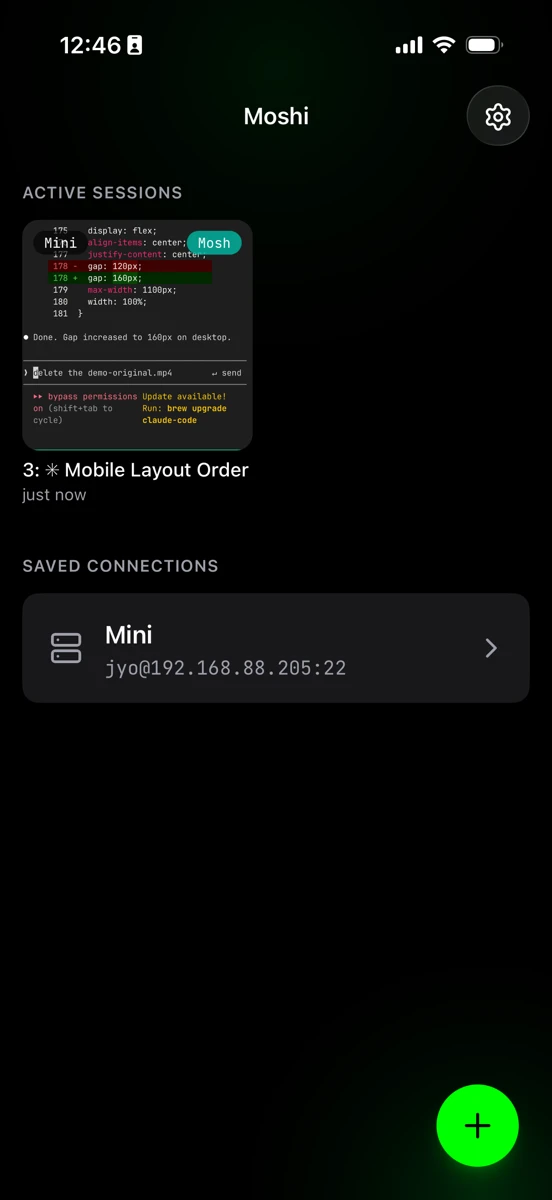
- Roaming: Survives WiFi → cellular → WiFi transitions
- Instant echo: 70% of keystrokes predicted locally, sub-5ms response
- No frozen sessions: UDP-based protocol handles packet loss gracefully
- Always responsive: Ctrl+C always works, even on congested networks
The Scrollback Problem
Critical: mosh has no scrollback buffer.
From GitHub issue #122:
"Mosh's terminal scrollback buffer is incomplete because Mosh synchronizes only the visible state of the terminal."
Run ls -la on a large directory, and the overflow is gone. You can't scroll up.
The solution: always use mosh with tmux. Mosh handles the connection. Tmux handles the scrollback.
Installing mosh
# macOS
brew install mosh
If you're using Tailscale or WireGuard, no firewall configuration is needed—you're already on a private network.
tmux for Persistent Remote Sessions
tmux creates persistent terminal sessions that survive disconnections—essential for remote development from your phone.
Why You Need tmux with mosh
- Persistence: Sessions survive network drops, phone sleep, and app switches
- Scrollback: Captures all output that mosh discards
- Multiplexing: Multiple windows and panes in one session
- Detach/attach: Start work on your laptop, continue on your phone
From the Princeton Handbook:
"If your SSH connection drops, the tmux session and its processes remain running on the server."
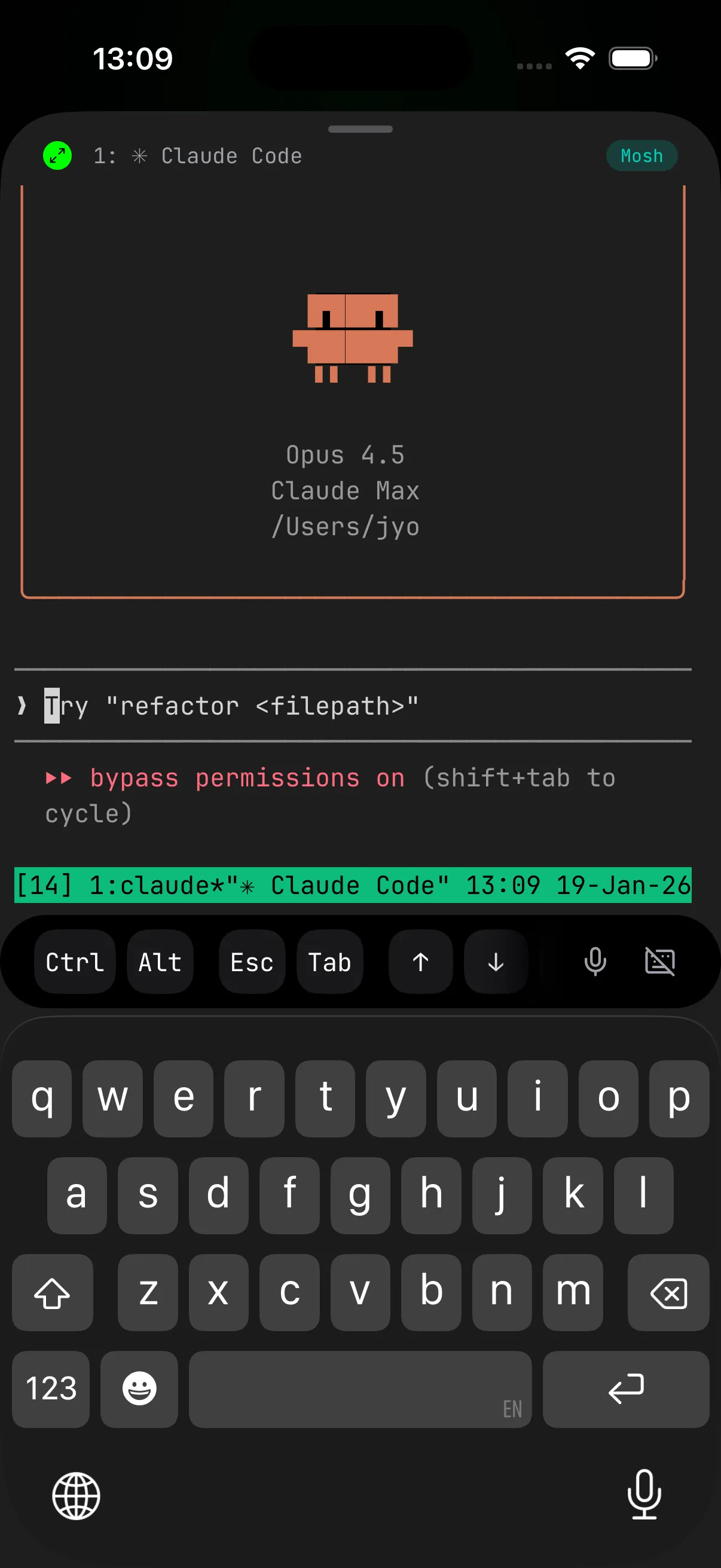
Essential Configuration
Create ~/.tmux.conf on your server:
# Scrollback buffer (default is 2000)
set -g history-limit 50000

# Mouse scrolling
set -g mouse on

# Pass window titles to terminal (for Moshi)
set -g set-titles on
set -g set-titles-string "#S:#W"

# Better prefix for mobile
set -g prefix C-a
unbind C-b
bind C-a send-prefix

# Vim-style pane switching
bind h select-pane -L
bind j select-pane -D
bind k select-pane -U
bind l select-pane -R
Basic Commands
| Command | Description |
|---|---|
tmux new -s dev | Create named session |
tmux attach -t dev | Attach to session |
Ctrl+A, d | Detach |
Ctrl+A, [ | Scroll mode (arrows to scroll, q to exit) |
Ctrl+A, c | New window |
Ctrl+A, % | Split vertically |
Best iOS Terminal App for Remote Development
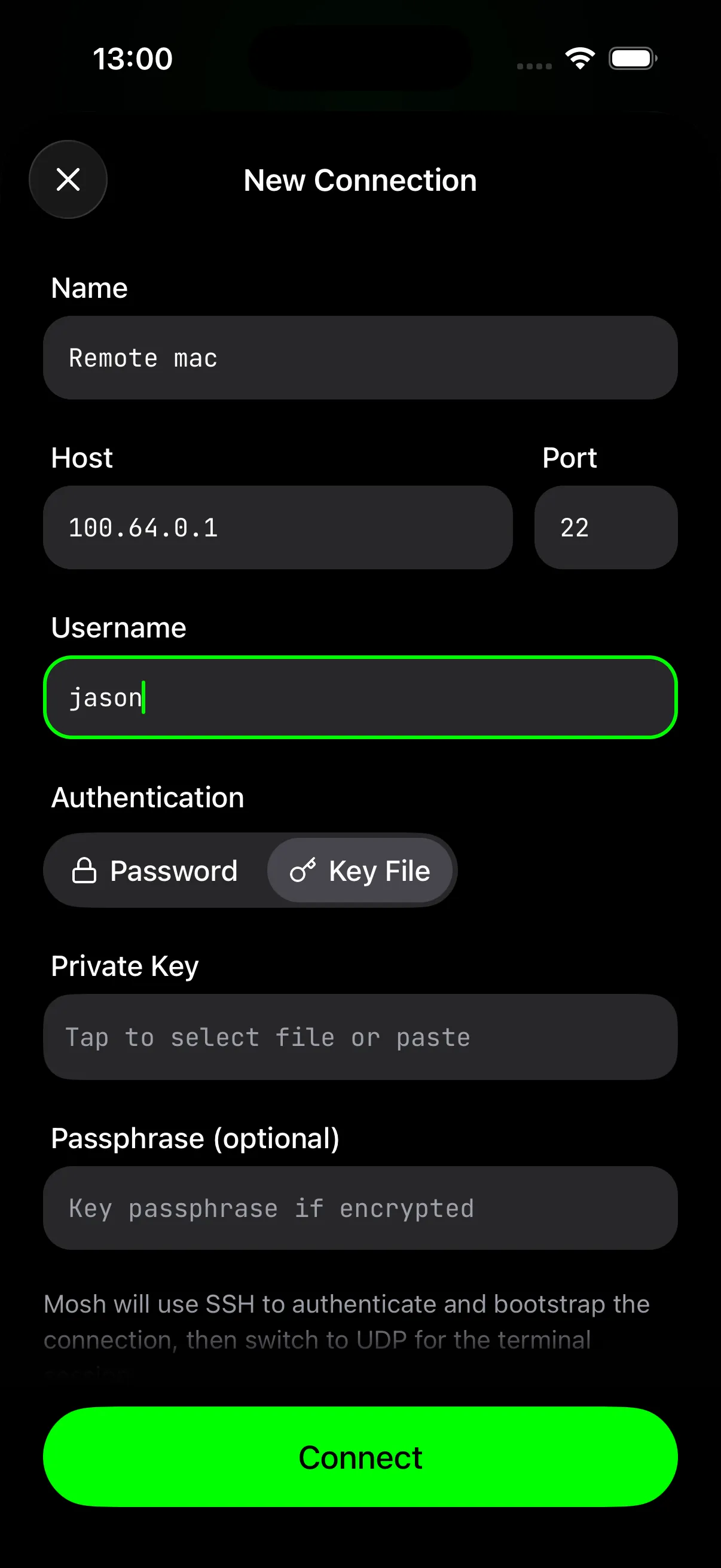
Moshi is the native iOS terminal built on mosh. It handles connection management, tmux session attachment, and push notifications automatically—purpose-built for developers using AI coding agents.
Native mosh Protocol
Moshi implements mosh natively. Combined with Tailscale's iOS app, you get true roaming:
"You can pair with Tailscale and upgrade your connection from SSH to the more stable, more responsive Mosh protocol." — Blink Shell Docs
Built-in Inbox, Push Notifications, and Live Activities
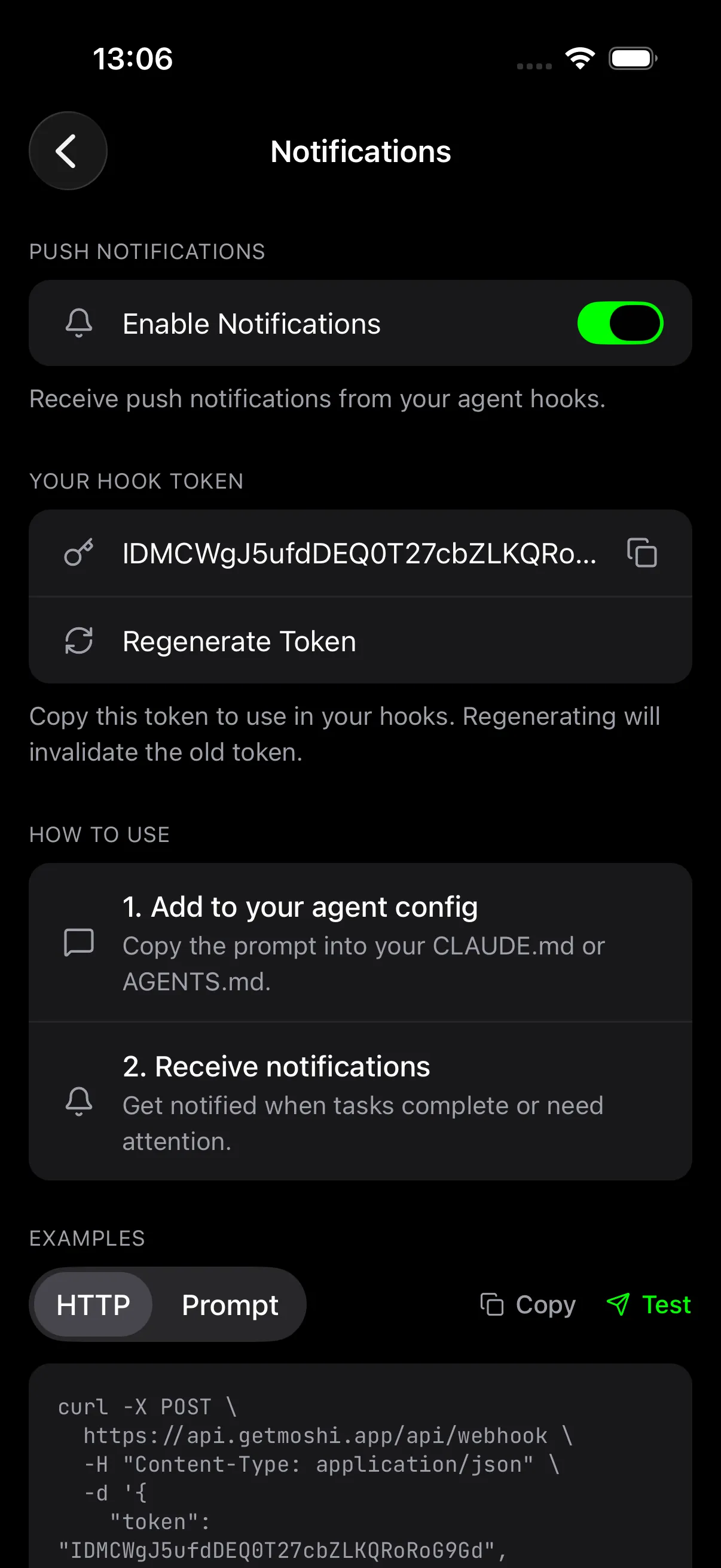
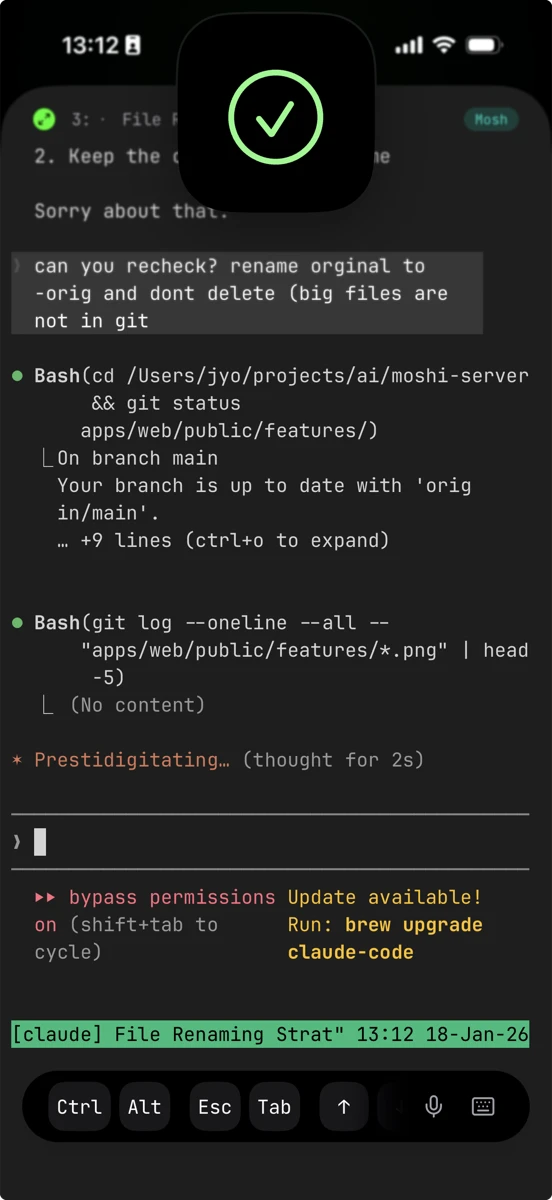
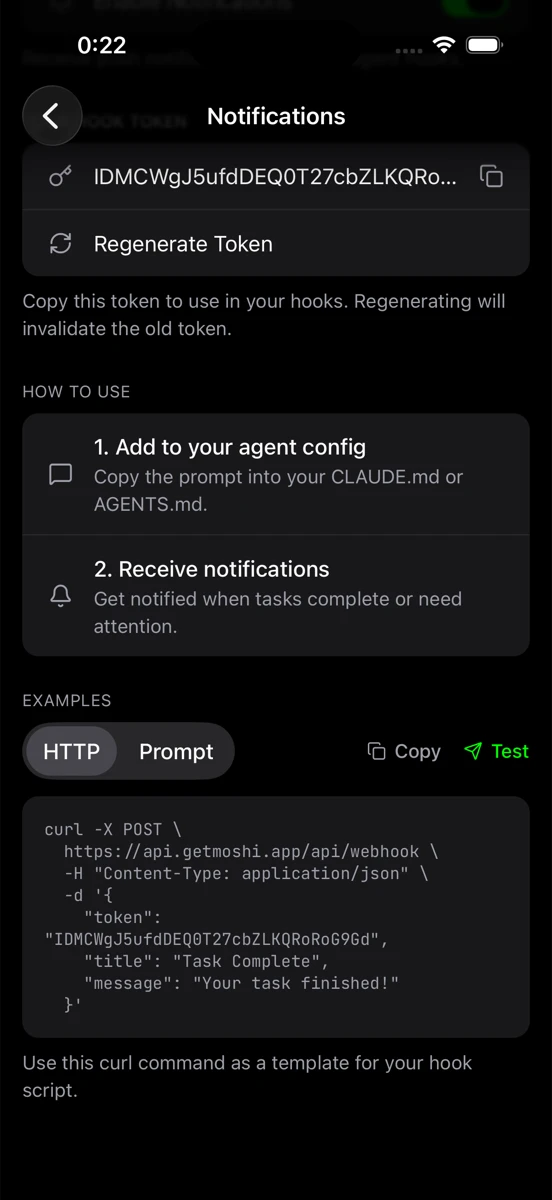
Moshi's notification system is built directly into the app. Enable notifications in Settings to get a webhook token. For quick scripts, send a plain webhook. For coding agents, install moshi-hook so Claude Code, Codex, OpenCode, Cursor, Kimi, and Qwen can report structured approvals, questions, completions, tool errors, and usage windows.
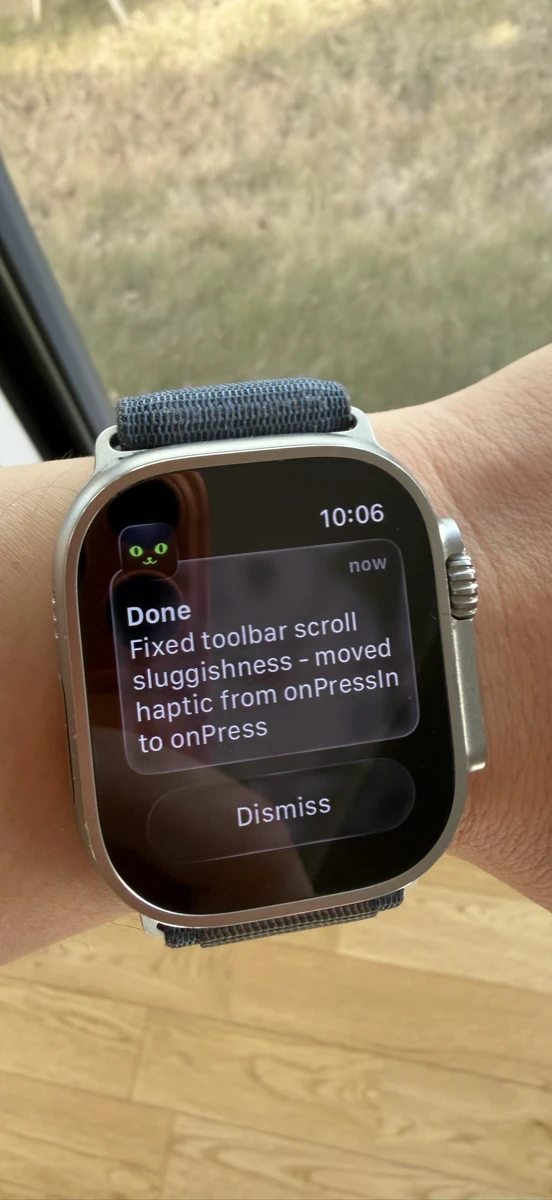
Those events land in Moshi's Agents screen, can update Live Activities and Dynamic Island, and sync to the Apple Watch companion. For the current setup, see Agent hooks and Live Activities, Agents & Usages, and Apple Watch.
Notifying Your AI Agent
The best path for supported agents is moshi-hook:
brew tap rjyo/moshi
brew trust rjyo/moshi
brew install moshi-hook
moshi-hook pair --token <token from Moshi>
moshi-hook install
brew services start moshi-hook
The simple webhook path still works for scripts, cron jobs, and agents you do not want to hook. Add this to your project's CLAUDE.md or AGENTS.md:
## Notifications

When you complete a task or need input, notify me:

curl -s -X POST https://api.getmoshi.app/api/webhook \
  -H "Content-Type: application/json" \
  -d '{"token": "YOUR_TOKEN", "title": "Done", "message": "Brief summary"}'
Replace YOUR_TOKEN with your Moshi webhook token from Settings → Notifications.
That's it. Claude Code and other agents can use this when they need you, while moshi-hook gives you the richer inbox and usage flow.
Voice Input Is Non-Negotiable
Typing on a phone keyboard is slow. Typing terminal commands on a phone keyboard is painful. When you're approving agent actions or giving instructions, voice input isn't a nice-to-have—it's essential.
Moshi now has three speech engines. Apple's on-device engine is fast and private, local Whisper works offline after model download, and Moshi's cloud engine is usually the most accurate for technical prompts but uses quota. See Voice and dictation for the full breakdown.
The options:
| Method | Latency | Privacy | Technical Accuracy |
|---|---|---|---|
| Moshi (Apple on-device) | Low | Full | Good |
| Moshi (local Whisper) | Instant | Full | High |
| Moshi (cloud) | Network-dependent | Moshi service | Highest |
| iOS Dictation | Low | Apple servers | Poor |
| Server-based (OpenAI, etc.) | Network-dependent | Third-party | High |
iOS built-in dictation works, but it's optimized for prose—not code, paths, or technical terms. It also sends audio to Apple's servers.
Server-based transcription (like apps using OpenAI's Whisper API) can be more accurate for technical content, but adds network latency and sends your voice to third-party servers. On spotty cellular, this becomes unusable.
Local engines are the sweet spot when privacy or spotty cellular matters. Cloud dictation is useful when you want the best technical accuracy and have quota available.
When you're walking and need to tell Claude "yes, run the migration," you don't want to wait for a server round-trip or fight autocorrect.
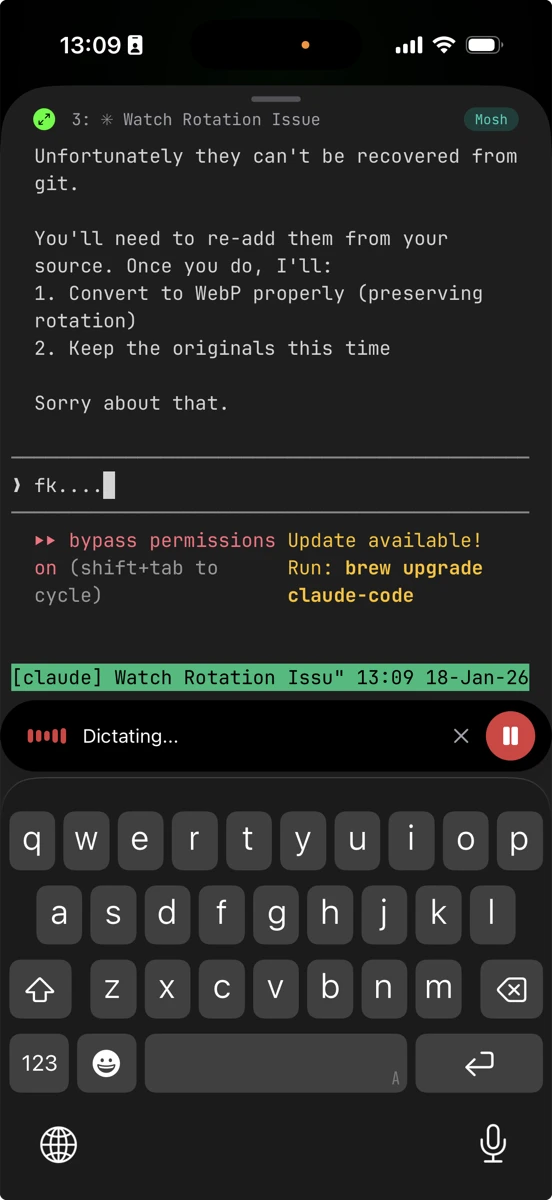
Image Paste for Visual Agent Work
Agents often need to see something: a screenshot of a broken layout, a photo of a whiteboard, a copied image from Safari, or an annotated bug. Moshi's Image paste sends that image into the agent prompt as a short URL without scp, SFTP, a temp file, or writing the image to the host.
With chat mode, you can dictate a prompt, attach an image, edit the text, and send one clean message to the agent.
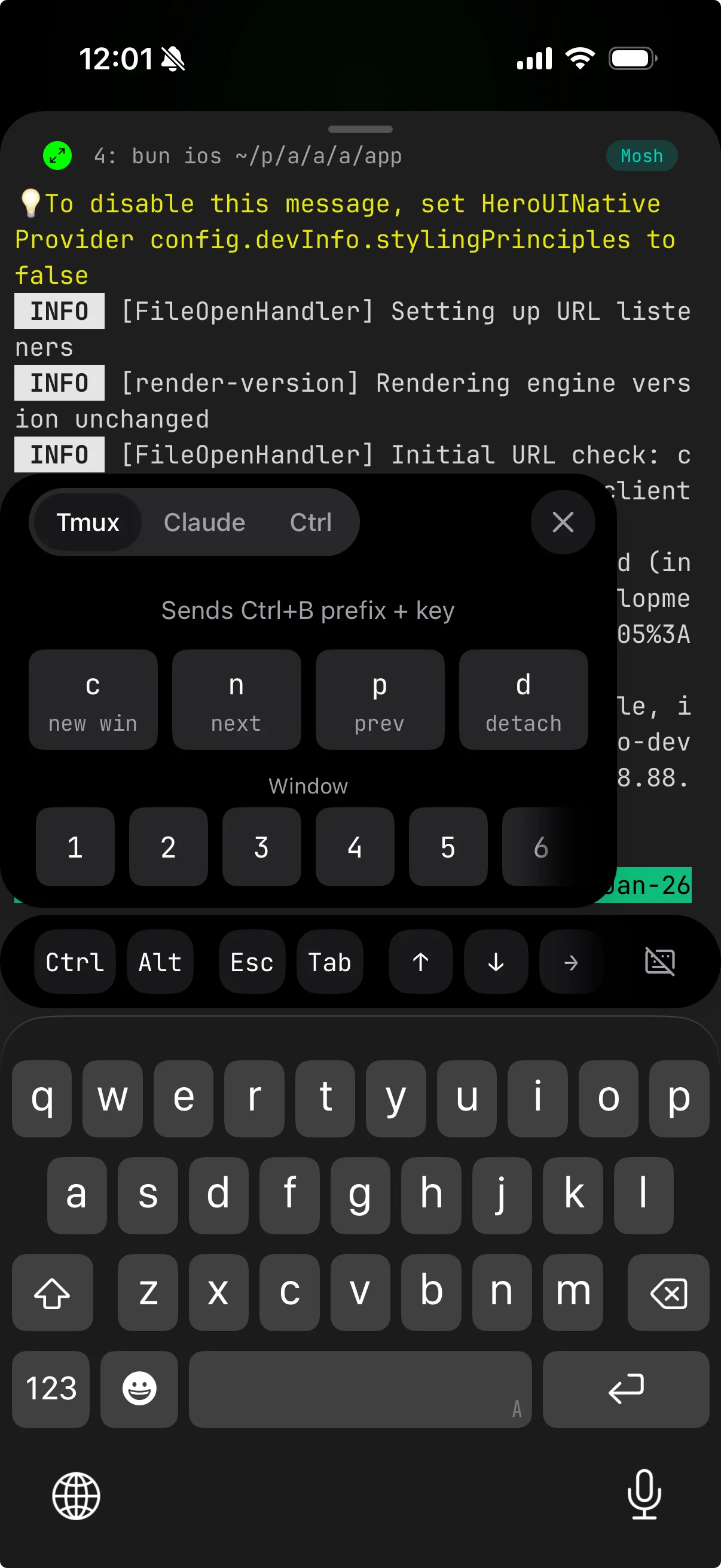
Mobile-Optimized Keyboard
When you do need to type:
- Dedicated Ctrl, Esc, Tab, and arrow keys
- Tmux prefix shortcuts
- Swipe gestures for common operations
For a complete guide to Moshi's keyboard, see Mastering Moshi's Terminal Keyboard.
Face ID for SSH Keys
SSH credentials are stored in secure iOS storage and can require Face ID or Touch ID before use. See Security and sync for the full credential model.
Why Not Blink Shell, Termius, or Prompt?
Other iOS terminal apps exist. Here's why Moshi is built different for AI agent workflows:
| App | mosh | Push Notifications | On-Device Voice | AI Agent Focus |
|---|---|---|---|---|
| Moshi | Native | Inbox, hooks, webhooks | Apple, local, cloud | Yes |
| Blink Shell | Yes | No | No | No |
| Termius | No (SSH only) | No | No | No |
| Prompt | No (SSH only) | No | No | No |
Blink Shell is excellent and supports mosh, but lacks Moshi's agent inbox, Live Activities, Apple Watch actions, image paste, and built-in coding-focused transcription.
Termius and Prompt are SSH-only. On mobile networks, SSH connections drop constantly. Without mosh, you'll spend more time reconnecting than coding. (See the focused Moshi vs Termius breakdown for the full picture.)
The key difference: Moshi is built specifically for the "AI agent on a remote server" workflow—inbox and Live Activities when Claude needs you, voice and image paste for quick context, usage tracking for rate limits, and instant reconnection. For a detailed comparison, see Best iOS Terminal App for AI Coding Agents.
Complete Setup Checklist
Mac
# Tailscale
brew install tailscale
sudo tailscale up --ssh

# mosh + tmux
brew install mosh tmux

# agent events
brew tap rjyo/moshi
brew trust rjyo/moshi
brew install moshi-hook
moshi-hook pair --token <token from Moshi>
moshi-hook install
brew services start moshi-hook

# tmux config
cat >> ~/.tmux.conf << 'EOF'
set -g history-limit 50000
set -g mouse on
set -g set-titles on
set -g set-titles-string "#S:#W"
set -g prefix C-a
unbind C-b
bind C-a send-prefix
EOF
Project
Add to CLAUDE.md or AGENTS.md:
## Notifications

When you complete a task or need input, notify me:

curl -s -X POST https://api.getmoshi.app/api/webhook \
  -H "Content-Type: application/json" \
  -d '{"token": "YOUR_TOKEN", "title": "Status", "message": "Brief summary"}'
iPhone
- Install Tailscale and join your tailnet
- Install Moshi
- Add your server (Tailscale IP, username)
- Enable notifications in Settings and copy your webhook token
- Pair
moshi-hookfrom Settings -> Agent Hooks - Add the webhook token to your project's
CLAUDE.mdonly for scripts or agents that do not use hooks
How It Works: Approve Claude Code from Your iPhone
┌─────────────────────────────────────────────────────────────┐
│                         Your Server                          │
│  ┌────────────────────────────────────────────────────────┐ │
│  │                    tmux session                         │ │
│  │                                                         │ │
│  │  $ claude                                               │ │
│  │  > Implementing authentication...                       │ │
│  │  > Need permission to run: npm install bcrypt           │ │
│  │  > [Waiting for approval]                               │ │
│  │  > curl → Moshi webhook                                 │ │
│  └─────────────────────────────────────────────────────────┘ │
└─────────────────────────────────────────────────────────────┘
                            │
                            ▼
              ┌───────────────────────────┐
              │     Push Notification      │
              │    → iPhone / Watch        │
              └─────────────┬─────────────┘
                            │
              ┌─────────────▼─────────────┐
              │       Your Phone          │
              │                           │
              │  "Claude needs approval"  │
              │                           │
              │  [Tap] → Moshi opens      │
              │  tmux session waiting     │
              │  Type "y" → done          │
              └───────────────────────────┘
Start a task → Walk away → Get notified → Approve in seconds → Agent continues
No idle agents. No rushing back to your desk. Code from anywhere with your AI assistant in your pocket.
FAQ
Can I use Claude Code on my iPhone?
Yes. Run Claude Code on a remote server, connect via Moshi, and interact through the terminal. With moshi-hook, Claude events can reach Moshi's inbox, Live Activities, Apple Watch, and push notifications.
What's the best terminal app for iPhone?
For AI coding workflows, Moshi. It has native mosh support, agent hooks, inbox events, image paste, and speech engines built for coding prompts. For general SSH, Blink Shell is also solid.
Do I need a server to code from my phone?
Yes. iPhones can't run development environments locally. You need a remote machine—a home server, VPS, or cloud instance—running your AI coding agent.
Will this work on iPad?
Yes. Same setup works on iPad with Moshi.
Can I approve agents from Apple Watch?
Yes. Moshi's watch app shows inbox rows and usage rings. Pro unlocks approve, deny, and answer actions from the wrist. See Apple Watch.
Can I send screenshots to Claude Code from my phone?
Yes. Use Image paste from Moshi's toolbar or chat mode. Moshi uploads the image and sends the agent a short URL, so the image does not need to be copied onto the host.
Is Tailscale free?
Yes for personal use (up to 100 devices). WireGuard is fully open source if you prefer self-hosting.
Related Articles
- Mosh vs SSH — how the two protocols actually differ, and when to use each
- Fix SSH Connection Errors — troubleshoot Permission Denied, Connection Refused, and Mosh issues
- Fix Mosh Connection Failed — Tailscale SSH incompatibility, UDP ports, locale errors, and more
- My Daily Moshi Workflow — how to organize tmux windows for AI agents
- Mastering Moshi's Terminal Keyboard — shortcuts, modifiers, and voice input
- Using Your Mac as a Remote Agent — detailed Mac server setup
- Best iOS Terminal App Comparison — Moshi vs Blink vs Termius
- Moshi vs Termius — the focused 1:1 comparison
- Moshi Agent Hooks — inbox, Live Activities, usage, and Apple Watch actions
- Agent hooks and Live Activities — current hook install and diagnostics
- Image paste — send screenshots and photos to agents from iOS